Showing posts with label facebook. Show all posts

How to make your Facebook video run faster?

Have your encountered a problem when you play your Facebook video? Well, if you have a slow internet connection, then you may try to think of  ways to speed up the video. Video Buffering has always be the problem for slow internet connection.

There's a simple way to speed up your view during playing Facebook video. It's really simple. Just locate the HD button on your Play toolbar on below the Facebook video you are playing. It's above Share button (sometimes it hides itself when you move away your mouse from the video). Then, click the HD button and your video buffering will run faster and you can watch Facebook video normally. Activating "HD" can let you watch the video in High Definition quality, but without HD you can watch the video with faster speed buffering.


How to leave a Facebook group?

It's sometimes annoyed when somebody adds you to a Facebook group. You probably think that the group notification and everything else about it seem unrelated to you. You might also think that you don't need to be in the group and then you feel like you want to leave the group. But perhaps you don't know how to leave these Facebook group.

Facebook group can be created by any Facebook members and then they can invite other Facebook members to join the group or add them to the group. Many people like sharing their thoughts through status post and photos on Facebook. Some even like to add their friends to the group thinking of growing the people inside the group. But, this could be something irritating to those who just don't like the topic of the group.

If you are one of those who just don't want to be in a group after someone added you in the group, you can actually leave the group easily. Locate the Cover photo of the Group at the upper side of the screen. You can see clearly. Then, at the right bottom corner of the photo, there is a "Notifications" button. Click the   next to "Notifications" and then select "Leave Group". That's how to leave a group you don't want to join in Facebook.


Facebook becomes one column plain view in Firefox

Have you ever encountered Facebook such problem that your Facebook view suddenly becomes plain white and also one column only? All the color theme seems to be disappeared in Facebook. This has ever happened to my friend when she logs in to her Facebook after someone else used her laptop. She uses Firefox to browse internet. Logging on to Facebook  using Google Chrome seems ok and nothing strange happens.

Well, if this also happens to you and you don't know what to do, I suggest you try these following steps. First, uninstall your version of Firefox. When your browser is old enough, it may not view all elements on a site properly. So, you need to upgrade your Firefox. After uninstalling the currently used Firefox, you may then download the latest version of Firefox and install it.

That's what I did to help her. Simple indeed right? Now you know how to solve this Facebook view problem.

Creating funny Samurai Art Image from your own photo

You probably want to have something different or cool from your own photo. Why not use Facebook Samurai Art application to create a samurai photo with your face photo. You need to like the App, then you can upload your own photo to make your very own Samurai photo. See the screenshot here!

Indonesian facebook-like social networking

Facebook has become so popular that almost everyone knows about it. It's the world largest social network. I think it's also no wonder that people of other countries have tried to make Facebook-like social network. Do you know that a site made by Indonesian called www.temanku.net looks like Facebook a lot, except for the color. The site uses green as its theme. I'm not interested in social networking, so I don't think I will join this social network. I mean nothing about posting this article. Just a piece of information to share that there's a similar social network to Facebook.


New translation feature from Facebook

Have you noticed something different on your Facebook chat? You might probably notice a small globe icon next to the left of your chat area when you're chatting with your friend on Facebook. This is a a new Translation feature on Facebook which helps us to understand other language by translating them. Simply click the Globe icon and you'll see the Translation menu. Click them to translate the conversation.

How to turn text upside down and use it on Facebook, Twitter, etc?

Are you feeling bored with Facebook? If you feel posting your status on Facebook seems nothing special, you can try using special characters in your Facebook status. If  you can say "Happy birthday" to your friends in a different way on Facebook wall, then your friend will be surprised and of course she / he will very appreciated it.

You can try using special characters on you text to make the text more special. Some people love using text art. Do you know that you can also turn the text you type to be upside down? Isn't it more special? There's a simple way to make this.


Click here to visit a website where you can type the text and have them turned upside down, rotate the text and flip the text. After you have finished you can then copy and paste the text on Facebook. Your friend will at least smile when reading your text. Don't you think so? You can then use it on your Facebook chat, Twitter, Yahoo Messenger and other social networking or messenger chat. Let's start updating your Facebook status in this special way.

Digsby - a simple application that manages all your social networking activities

Have you joined many social networking and have lots of accounts to manage? Are you feeling stressed on logging in and out from one social network to another one? Well, if you have such problems, you probably need a program that manages all these activities automatically for you.

Digsby is the answer. It's a program which handles or manages many of your accounts. It's a combination of Instant Messenger (IM), Email and Social Network altogether. Digsby supports Mac OS X, Linux and Windows. It means you can use it for any operating system, since those three operating systems are the most common ones of the world.

A. Instant Messenger
Digsby is useful because it supports those most commonly used Messenger, like AIM, MSN, Yahoo, ICQ,  Google Talk, Jabber and Facebook. With this IM manager, you can switch from an IM to another easily by just clicking the tab of IM you want to use. And you can also send sms directly from this program to your friends.

B. Email
Digsby helps you to manage emails easily because it can manage emails of  Hotmail, Gmail, Yahoo Mail, AOL/AIM Mail, IMAP, and POP altogether. What a convenient software. When a new email comes, you can open it directly without any hassles.


C. Social Networking
Digsby is really a great helper for those who have Facebook, Twitter, Myspace and LinkedIn accounts. It helps you save troubles for getting information of your social networking friends' status updates, new uploaded photos, and upcoming birthday. It's an all in one Social Networking manager.

It also supports widget that you can have it on your website or blog. So, you can have your own chat box just right on  your website. You may also customize the digsby widget to your preference. And the great news is that it's free to download Digsby.

How to change your facebook theme using Firefox browser add-on and Google Chrome extension?

How to create personalize Facebook view using Personal Facebook themes. By using Firefox and 2 add-ons: Stylish and Boost for Facebook. After installing Stylish add-on, you can then using Stylish themes which you can choose the one you like. There will be a small button at the right bottom corner, where you can click to remove the white background of Facebook so that the style of stylish can be displayed.

For Google Chrome users, you can also do the same. In Firefox, you call add-on, but in Google Chrome, you call it extensions. Download and install the extension and follow the step by step. Watch the two videos below to help you understand.


How to create a webpage inside Facebook?

Ever wonder how other people can create a webpage inside Facebook as the frontpage. You'll be able to add elements like images, texts, and other media into the welcome page. All you need to do are actually click and drag the objects. Then do some customization. You can also change the theme. Then how to create a webpage inside Facebook? Watch this video and follow the step-by-step.

How to put welcome music on your Facebook page?

You'll probably ever visit a facebook page, and you feel surprise that you can listen to an opening music. This seems to be unusual to you as facebook user. Actually, you can add music to your facebook Profile. Share your favorite music with your friend, amaze them through your facebook profile. So how to put the welcome music on your Facebook page? Watch the video below.

How to download Facebook video easily?

You can upload Facebook video easily, but do you know that you can also download Facebook video with just 3 simple steps? First, you need to use Firefox. Firefox is probably the browser with most complete add-ons of third party which just make it better than other browser. But installing too many add-ons will just slow down your browsing.


Then after having Firefox, what add-on should I install to download Facebook video? Well, you need to install Speedbit Video Downloader. After you have finished installing it, you will see that your Firefox has added a new button on the toolbar, called "Download video".

Here are the three simple steps for downloading Facebook video:
1. Play the Facebook video you want to download
2. Click the button "Download Video"
3. Type the video name and save the video

Simple, isn't it? Now, you know how to download Facebook video using Firefox add-on.

Facebook Badge, a simple widget to link your facebook to your blog / website

Facebook is a very popular social networking nowadays. Almost every internet user has a facebook account. Those who have blogs or websites can also promote their blogs or websites through facebook. By placing a Facebook Badge on your website or blog which consists of a link to website, you drive traffic (get more fans) from blog or website. And by putting your website or blog link to facebook, you can drive traffic to your blog or website. That's why this widget is so important.

There are four types of Facebook Badge where you can insert in your blog/website.

1. Profile Badge

Share your Facebook information on other websites.


2. Like Badge
Show off your favorite Pages on your website or blog.


3. Photo Badge
Share your Facebook photos on other websites.


4. Page Badge
Share your Facebook Page information on other websites.


So, if you have a website or blog which has not added Facebook badge, do it now.

How to block / unblock someone on Facebook?

Facebook has become so popular nowadays. It's so easy to let you connect to your friends, even those who you seldom meet or those who have been losing contact for a long time. Sometimes, you may also try to accept a stranger as your friend. And this is done by just clicking on Confirm from friend request of the person who adds you as friend.

But, you may also find that making friends with unknown people or strangers on Facebook may sometimes make you troubled. Such as, inappropriate comment, unwanted status posted on your wall, tagging with photos which you are not in or not interested in (especially by those online shops). Some even irritate you by typing unrelated things on your chat, causing disturbing sound repeating again and again.
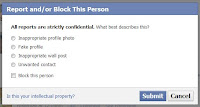
Facebook has already had a feature to block those irritating people. Here are steps on how to block someone:
- First, click on the name of the person you want to block
- Locate and click the link "Report/Block This Person" at the bottom left corner
- Then, choose the reason why you want to block, tick the check box of Block and then click Submit.

You can also block someone by selecting Account - Privacy Settings. Then typing in the Name or the E-mail of the user you want to block. After that, click Block This User. You may also block app invites or event invites on Facebook.

To unblock someone you have ever blocked, just click Account - Privacy Settings again. Then click Unblock  right beside the name of the person you want to unblock.


Now, you know how to block / unblock someone on Facebook!

How to make Facebook load faster?

Facebook is a very popular social networking for people all over the world. We can use Facebook with PC or with mobile device. When we go to Facebook interface, we usually type: http://www.facebook.com for default interface which consist of three column interface. On the right side, we always see advertisements.

We can also use Facebook on mobile device by this url:
http://m.facebook.com
or
http://www.facebook.com/mobile
That's facebook for mobile phones.

Because of this simpleness, we are sure to navigate faster. Advertisements and Facebook applications take time to appear in the interface. So, if you want to make Facebook faster, you can use this.

There's another interface which also let you use Facebook faster. Facebook has also been designed for touch device like iPhone. This can be accessed by this url:
http://touch.facebook.com

In fact, these three interface can be accessed by your PC whether desktop or laptop. Now, you can access your Facebook quickly.

Your Japanese Name - Facebook application

Are you interested in Facebook and Japanese? If your answer is "yes", then I think you will like this Facebook application. The application lets you create your Japanese name from your English name (other languages as long as it's Roman character is also possible).
When you have entered the website, just click Go to Application and you will need to Allow the application takes your personal information. After that, type in your name and you'll be able to put it in your own Facebook. Click here to enter the page.

How to upload photos on Facebook?

Uploading photo is something very common when using Facebook. Just click the Photos tab next to Wall and Info. After that, you'll see Photos Browser (if you are using Java uploader). You can also upload photos using Simple Uploader which lets you upload at most 5 photos at one time. The Simple Uploader seems to be more troublesome because you have to click Browse and click on the photo every time you want to upload your photos.

Generally, people tend to use Java uploader on Facebook because it's convenient (especially those who have fast internet connection). When you want to upload, you just need to tick the photos you want (from the photo browser) and click Upload. This will save you a lot of time. But sometimes, this method can go wrong too. One of the common error that appears is Server error. When you see this kind of error message, you may try uploading with Simple Uploader.

LinkWithin

Related Posts Plugin for WordPress, Blogger...